Gibson Typehammer keyboard
- First draft
- 2026-03-29
- Latest draft
- 2026-07-20
What if you could control the computer moving just your fingers while having your hands and arms otherwise at rest.
In a draft on keyboards I wrote about the mechanical history that causes serious ergonomic damage to the users of the electronic computer, despite the electronics having severed those mechanical chains decades ago. The need to fixate the shoulders and twist the wrists not only makas our muscles ache, but can cause permanent damage to the nerves of our arms.
In this piece I write about a solution which for me seems to be the ultimate in ergonmics of using the computer with hands.
Steps to the best ergonomics: Moonlander and Burroughs
The road to the ultimate keyboard ergonomics consists of many steps. The first one is saving the wrists from bending by splitting the keyboard into two independently positioned halves. I started this journey with the Moonlanader by ZSA. It also incorporated step number two: linear columns of keys. The typewriter keys are - for mechanical reasons - arranged in linear rows that are offset relative to each other, but this forces rather awkward finger twisting. Linear columns allow for much more natural finger movement.
The third step is reducing the amount of movement: there's the "home position" and moving your finger more than one key away from it necessitates hand movement, which easily leads to shoulder pain, as you need to support your arm. As all keys that are needed for all letters, numbers, and punctuation cannot be fitted within that reach, we need "layers" which allow each key have multiple functions, e.g. switching on the number layer gives us "1" in the place of "Q".
Not all finger movement is equal, however. The index finger can easily reach the keys around it, but the pinky is unhappy if asked to move anywhere from its home key. The solution: less keys, more layers. My first self made keyboard Burroughs has only twelve keys for each hand: one for pinky, ring finger has two, middle three, index four, and two keys for thumbs. In addition to all of the regular letter and number keys there's one layer where the keys act as the mouse, so pointing around doesn't require hand movement.
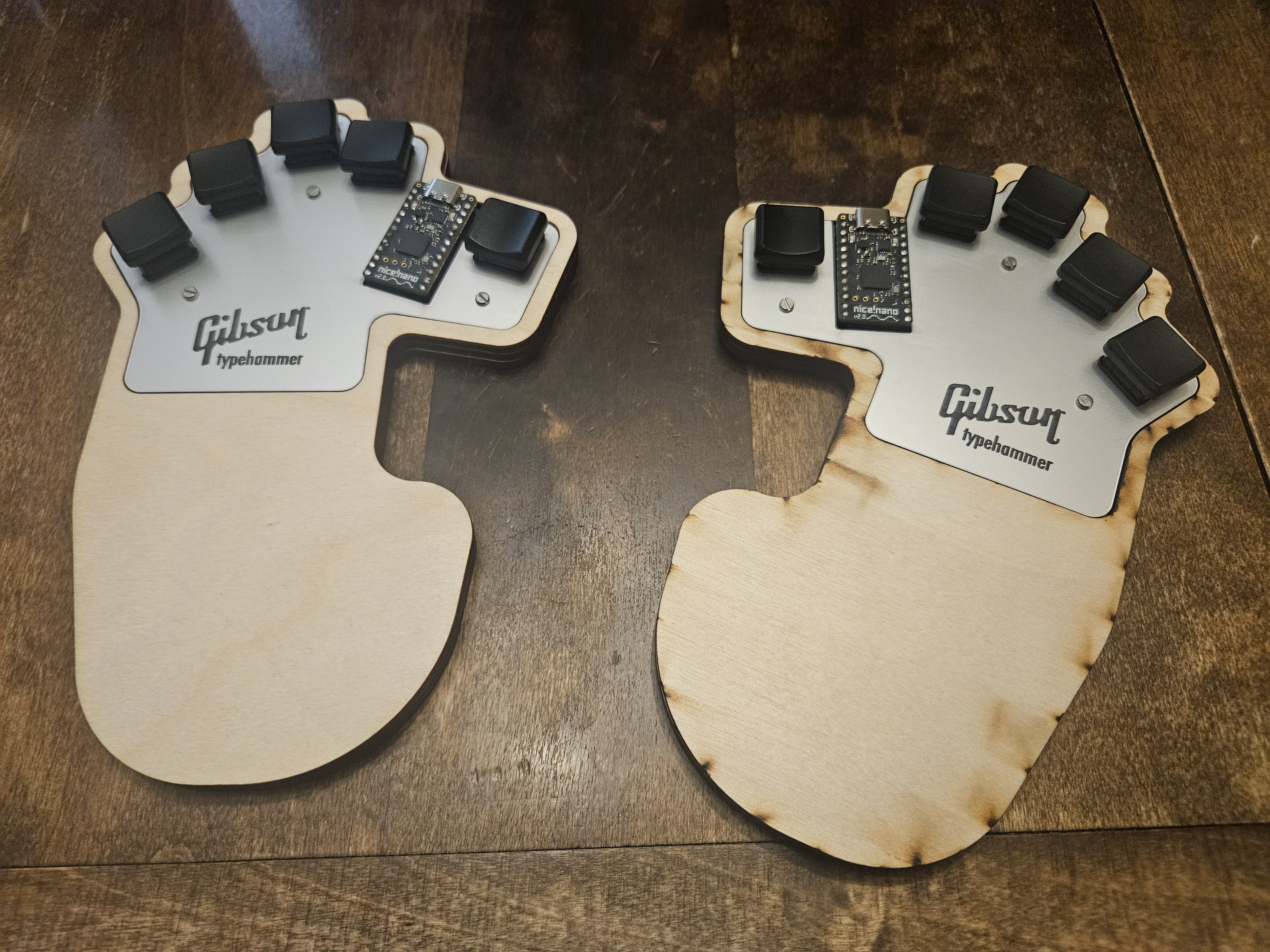
The final step: Gibson Typehammer
Eventually the other fingers got jealous for the pinky alone having the leisurely luxury of a single key. Why the others should move around when the pinky just sits there, tapping. There's one problem though: too many layers and not enough keys to switch between them. Fortunately there's a solution to this problem too: chording aka combos, where pressing multiple keys simultaneously gives different letters than pressing them individually. E.g. the left hand pinky is A, ring finger S, and the two together are D.
This is where Gibson Typehammer enters with two halves, just five keys each. By the way, if you are wondering about the names Gibson and Burroughs: I have decided to name them after writers who have had a significant impact on me.
Admittedly there's a bit of a learning curve. Pressing multiple keys with precise timing might be easy for a pianist, but not for me. Some might find it difficult to remember all the combinations, but as this has been a natural succession from simpler to more complex keyboards, it has been surprisingly easy for me.
Below I'll go into more details on each of the layers and the reasoning behind them, and then on the physical design.
Layers
With the moonlander I got sometimes confused which layer was active and e.g. kept on typing when I thought I was moving the cursor. To avoid this with the Burroughs I opted for momentary layers, which stay active only as long as the layer switching key is held down. Less confusion, more pain in my thumbs, as the thumb keys are used for controlling the layers, and I ended up holding the thumbs down in static tension for too long periods. It's better to just learn to know the current layer and use toggle type switching instead.
Another lesson I learned with the Burroughs was that it's better to keep the modifier keys (shift, alt, etc.) always on the same side instead of having them on the right hand side for some layers, and left for others.
Perhaps surprisingly having less keys made typing letters simpler - at least what comes to layers: as combos are required in any case, all letter keys of the Finnish keyboard (apart from Å) can now be produced with one layer, whereas the Burroughs needed two layers for the letters.
Now the right thumb's sole task is to control the layers: a tap always activates the letter layer, and holding it down keeps the layer changing layer active.
The letter layer
At the bottom there's the letter layer. As mentioned above, the right thumb has its own task on all layers. The left thumb taps for space and holds for momentary punctuation layer (this is an exception to toggling layers, as there won't be a need to keep the punctuation layer activated for longer periods). The other eight keys produce the eight most common letters (A, S, E, T to the left, and H, I, O, N to the right) with single taps, and others with combos.
The combos are always limited to one hand: spanning them for both hands would give a lot more possible combinations, but the difficulty involved is not justified by that small benefit - at least for now, maybe in the future I'll add some stenography functionality there.
The four non-thumb fingers of the left hand produce full stop, comma on the right. These are the only punctuation from the letter layer, the rest comes from the next layer.
Punctuation and control keys
On a traditional computer keyboard there's a bunch of keys in addition to the letters, arranged in the periphery of the keyboard, some punctuation and special characters, and the control keys: Esc, Tab, Enter, Backspace. Then there are the modifier keys. Windows calls these Win, Shift, Alt, and Control; the Mac has Command, Shift, Option, Control.
A computer user who regularly reaches for the mouse might rarely use other modifiers than the Shift, but someone who relies on the keyboard shortcuts uses all of them surprisingly often. And as the modifier by design are often used in combinations, they can't be put behind combos. So on the punctuation and control layer (and all the layers above it) the right hand index to pinky have: Combo, Option, Shift, Control.
The control keys all involve the left index finger. On its own it's the Backspace (unfortunately the most frequent one), with the middle finger we get the Tab (as I use Command-Tab for application switching it is very frequent too), add the ring finger for the Enter, and all four is Esc. Then there's one "control key" that is a bit special: Caps-word (index finger and pinky). I don't use Caps-lock, as I don't type long passages in upper case, but Caps-word is actually really useful: hitting it turns Caps on for the next word, and then automatically off - quite handy for acronyms.
Then there are the punctuation keys like -, <, ' etc. The ones I use the most are typed with one key, less frequent ones with combos.
Layer switching layers
Holding the right thumb down summons the first layer switching layer. The layer selection is also right hand's task: from index to ring finger we have Mouse layer, Cursor keys (or arrow keys), Numbers. Tapping on those switches the layer.
Two first fingers have also a holding option: while the index finger is held we momentarily switch to ZXCV layer (on that layer the Command key is automatically pressed, so this layer is for easy undo, cut, copy, and paste). Holding the middle finger gives momentary access to volume adjustment layer.
Keeping the pinky down switches momentarily to the second layer switching layer, where taps with index, middle and ring fingers switch to layers with scroll wheel keys, pg-up/pg-down keys, and the function keys. All these related to what we have on the first layer switching layer.
A layer to switch layers, including another layer switching layer, may sound quite complicated, perhaps even Escheresque, but in practice it is surprisingly practical.
Numbers
While the letter layer is arranged by how frequently each letter is needed, the same would not really work for numbers. There might be some differences to the numbers' frequency, and some keyboard layouts have used this as a guide and ordered the numbers in non-numerical order, but personally I would find it highly confusing.
But we have only four left hand fingers from pinky to index (the right hand has modifiers, the left thumb does the same as on the letter layer) but we need ten numbers - what to do? Binary! As an old school programmer I'm quite comfortable with the binary numbers and with four digits I can go up to 15 (not 16 as not pressing any key does not count as 0 here), so I can include plusses and minuses for comfortable calculator use.
Directional keys
Whether moving the mouse cursor or the text cursor the directions are the same: from the left pinky to the index finger it's left, up, down, right. Rather logical and easy. Again all these layers have the modifiers on the right hand side.
There are four layers with directional keys:
- Mouse, left thumb has the primary (left) mouse button (holding the control key down when clicking makes it the secondry (right) mouse button)
- Arrow keys, holding down the left thumb switches momentarily to the Page keys layer.
- Scroll wheel, both vertical and horizontal scrolling.
- Page keys: home, page up, page down, end.
Other layers
There are two more layers with small but important tasks. Both of them can be accessed only momentarily, holding down either index or middle finger on the first layer switching layer.
The index finger turns on the ZXCV layer, where the Command key is automatically always pressed, so that left hand fingers produce Cmd-Z (undo), Cmd-X (cut), Cmd-C (copy), and Cmd-V (paste). With this layer the clipboard operations can be quikly accessed from any layer. On this layer the right hand fingers from middle finger to pinky can press Option, Shift, or Control for special clipboard operations.
The middle finger turns on the layer for volume controls: up, down, and mute.
Physical design
When each finger operates just one key, a whole new range of possibilities opens up. I could have gone down some rather radical routes, for long considered many, even tried one, before settling on a somewhat conventional design which has a clear family resemblance to a conventional keyboard.
Need for keys
When a finger needs to control just one on-off state, one obvious thougt is to do that without any keys, perhaps with some sort of a glove. Flex sensors are one option, and various optical and mechanical alternatives could work too.
After thorougly thinking it through I abandoned this route for a couple reasons: the first is tactile feedback, the second is picking nose.
One of the key characteristics of keyboard switches is their tactile response, how does it feel to push the key down, how much pressure does it require, and finally how does the finger know when the key actuates. The tactile feel of keyboard switches is something the enthusiasts never grow tired of tweaking and debating - and for a good reason, as it is perhaps the most defining element of the typing experience.
The tactile feedback of a flex sensor then...e exactly, there just isn't any. With a tremendous amount of work it could be possible to develop a reasonably tactile glove based solution, and I've spent too many hours pondering it when I should have been sleeping. But the second reason mentioned above would make such endeavour futile.
I don't pick my nose constantly, but I do frequently reach for a water bottle or other beverages, lift glasses on my nose, check the phone, and a myriad of other things I hardly even registre doing with my hands. All of these would be impractical and some would be painfull if I had some typing gear attached to my fingers. Especially nose picking.
Body shapes
As a nod to Latham Sholes the ultimate typing device ends up having some keys attached to a frame, just like 150 years ago. But what kind of frame? Unlike 150 years ago there are no mechanical constraints forcing the placment of the keys, so this time we can focus on anatomy and physiology.
One obvious goal would be to make it as small as possible, and many keyboards with reduced number of keys have been designed with small size among the primary design drivers. Down to 20 keys per hand this works well, but when we approach ten keys and go beyond, small starts getting really small compared to a human hand.
My solution for Gibson was to go with a (relatively) ample sized body upon which I can rest my palms. This fixes the position so that the keys (and thus the fingers) are always in the same relative position to the pads of the palms. Otherwise the keys could wonder around the desk. Also, with the weight of the hands, the boards are stable, they don't wobble when typed.
Conclusion
While somewhat unconventional this keyboard is by no means revolutionary: stenographers have used similar devices for long and Douglas Engelbart in The Mother of All Demos in 1968 used a 5-key chording keyboard with his left hand - even though the mouse in the right hand seems to have had a bigger impact so far. On a personal level this is of course quite a revolution, as everything is tailored to fit my hands and typing habbits like a glove.
I have typed this piece solely with the Gibson - albeit slowly. The needle in the WPM-meter has hardly moved, but the speed will improve once the muscle memory develops. More importantly the joy and comfort have been there from the get-go: typing and mousing with the hands fully at rest is really fun!